 Do you remember? Computing in the early nineties? DOS 6.22, QEMM, Windows 3.11? Do you remember the business programs, like WordPerfect, Word for Windows, and Lotus, browsers like Internet Explorer and Netscape?
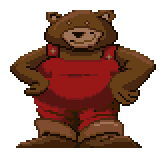
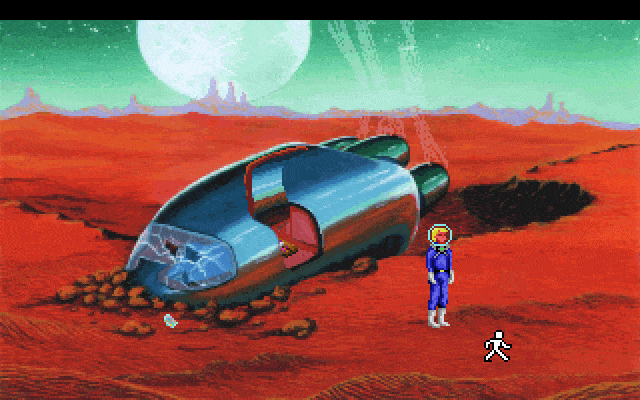
Do you remember the more serious programs like King Quest and Space Quest? Do you remember the fun our kids had playing Putt-Putt and Fatty Bear after we installed that expensive Gravis UltraSound card in our 368-driven Personal Computer?
 Do you remember? No smartphone, no iPad, no Spotify, no YouTube or Facebook….. life was simple and good.
And now, one generation ahead, we remember we have some floppies in the attic, and we would like to introduce those great games to our younger grandchildren as an antidote against all those first-person shooters and highly realistic racing games.
So we take our fancy Windows 10 or 11 laptop with a huge processor and loads of memory, just to discover there is no floppy drive! Ahah.. we remember, also in the attic, under a layer of dust, we have an old optical drive! We blow off the dust, hook it up through the USB plug, struggle through all the floppies during the installation process, only to find out that after double-clicking the .exe file, it just doesn’t work… and we are ready to throw the whole caboodle into the trash can.
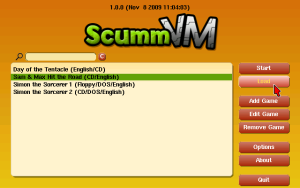 NO, don’t do that! Take a breath, there is a solution! It’s called ScummVM. It is a collection of game engine recreations that allow old point-and-click adventures to run on new computers and laptops. Even on other platforms and consoles than they were originally made for! You can, for instance, run a Windows version of Broken Sword on macOS, and… it is free! Well, that’s nice, but how to do it?
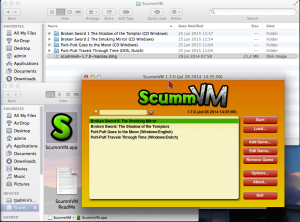 1. Download ScummVM from here (http://www.scummvm.org) and install it on your fancy laptop. Pick the right one, for there are versions for numerous platforms. For Windows, there is an installer version.
2. Copy the directory with the content of the game you like to run from that old Windows XP machine where you installed it first to your fancy laptop. You might not need all the files, you can check which files are necessary here: (http://wiki.scummvm.org/index.php/Datafiles).
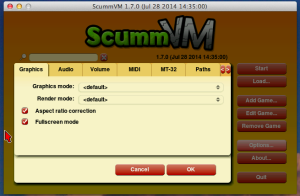 3. Start ScummVM, click ‘Add Game…’ and select the directory with the content of the game to be run.
4. If you like to play the game in full screen, click ‘Options…’ and check ‘ Aspect ratio correction’ and ‘Fullscreen mode’, click ‘OK’ and ‘Start’, and off you go!
If the game doesn’t run, there are more options to set in ScummVM. There is a lot of documentation and a wiki on the ScummVM website. Besides that, there are some free games on the ScummVM website, and many older games you can run in ScummVM are found on the internet.
Happy gaming!
Jul 2 2015
Putt-Putt and Fatty Bear, are they lost for ever?
Do you remember the more serious programs like King Quest and Space Quest? Do you remember the fun our kids had playing Putt-Putt and Fatty Bear after we installed that expensive Gravis UltraSound card in our 368-driven Personal Computer?
And now, one generation ahead, we remember we have some floppies in the attic, and we would like to introduce those great games to our younger grandchildren as an antidote against all those first-person shooters and highly realistic racing games.
So we take our fancy Windows 10 or 11 laptop with a huge processor and loads of memory, just to discover there is no floppy drive! Ahah.. we remember, also in the attic, under a layer of dust, we have an old optical drive! We blow off the dust, hook it up through the USB plug, struggle through all the floppies during the installation process, only to find out that after double-clicking the .exe file, it just doesn’t work… and we are ready to throw the whole caboodle into the trash can.
2. Copy the directory with the content of the game you like to run from that old Windows XP machine where you installed it first to your fancy laptop. You might not need all the files, you can check which files are necessary here: (http://wiki.scummvm.org/index.php/Datafiles).
4. If you like to play the game in full screen, click ‘Options…’ and check ‘ Aspect ratio correction’ and ‘Fullscreen mode’, click ‘OK’ and ‘Start’, and off you go!
If the game doesn’t run, there are more options to set in ScummVM. There is a lot of documentation and a wiki on the ScummVM website. Besides that, there are some free games on the ScummVM website, and many older games you can run in ScummVM are found on the internet.
Happy gaming!
By Tom • Tips & Tricks 0 • Tags: King Quest, Putt-Putt, ScummVM, Space Quest, Windows 7, Windows XP